Personalize your User Experience with ImPAI
The User menu allows you to personalize your ImPAI experience and manage your session. Various settings are available from this menu.
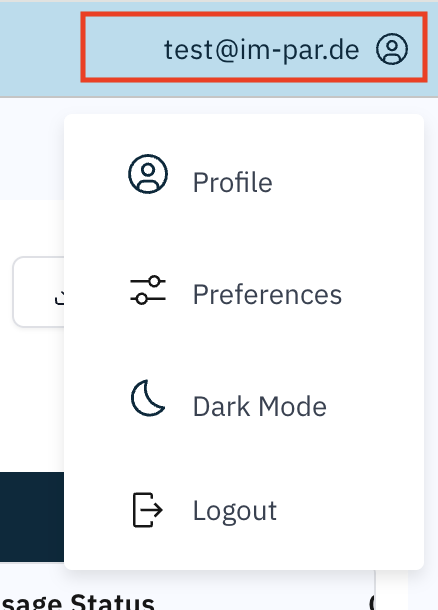
To open the User menu click on your user icon or email address in the top right corner and a dropdown menu will appear. From here you may
-
open and view your 👉 Profile details
-
open and set your application 👉 Preferences
-
switch between 👉 Dark Mode and 👉 Light Mode in the front-end
-
👉 Logout of the platform
- Review your Preferences after your first login to make sure the system is set up for your needs.
- Toggle Dark Mode depending on your working environment.
- Use Logout regularly as a security best practice.
Profile
🔜 Details coming soon...
Preferences
In the Preferences menu, you can configure how date and time information is displayed across ImPAI and which timezone to use for the time information. This helps align transaction records with your local working environment.
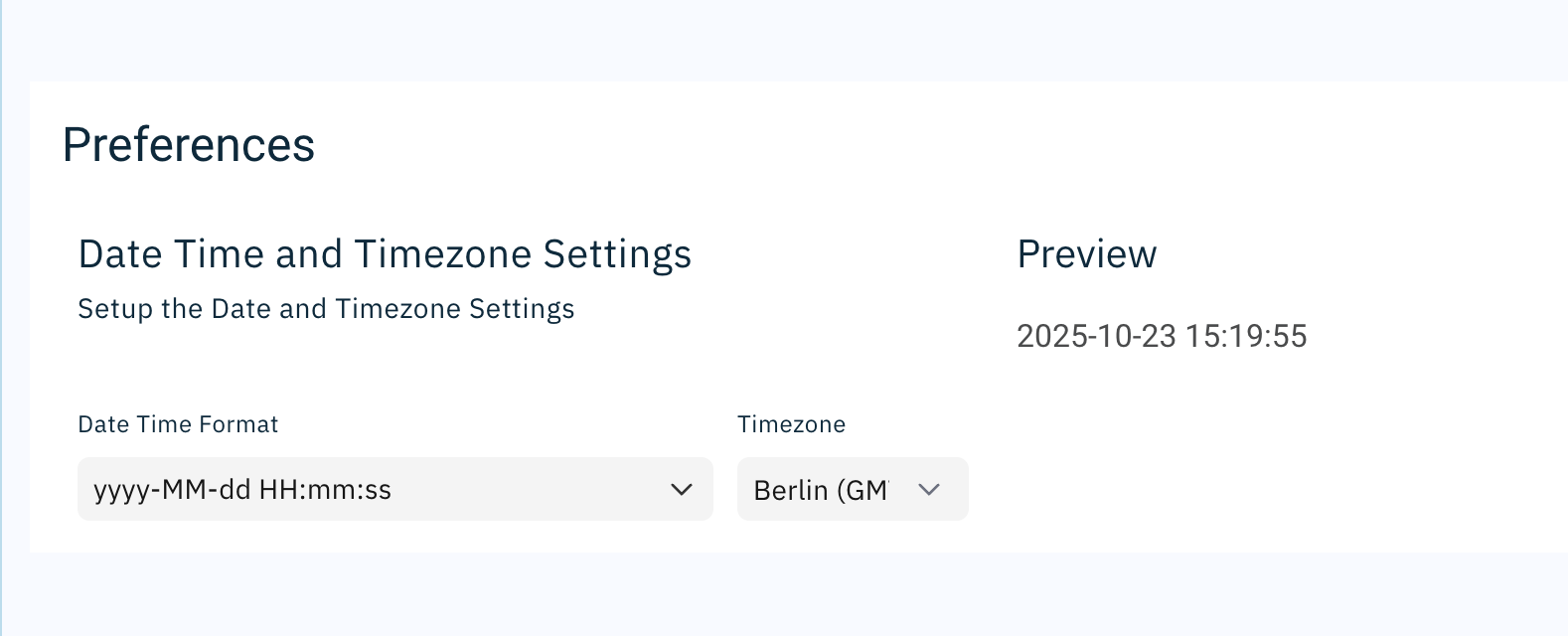
Date and Time Settings
Available Options
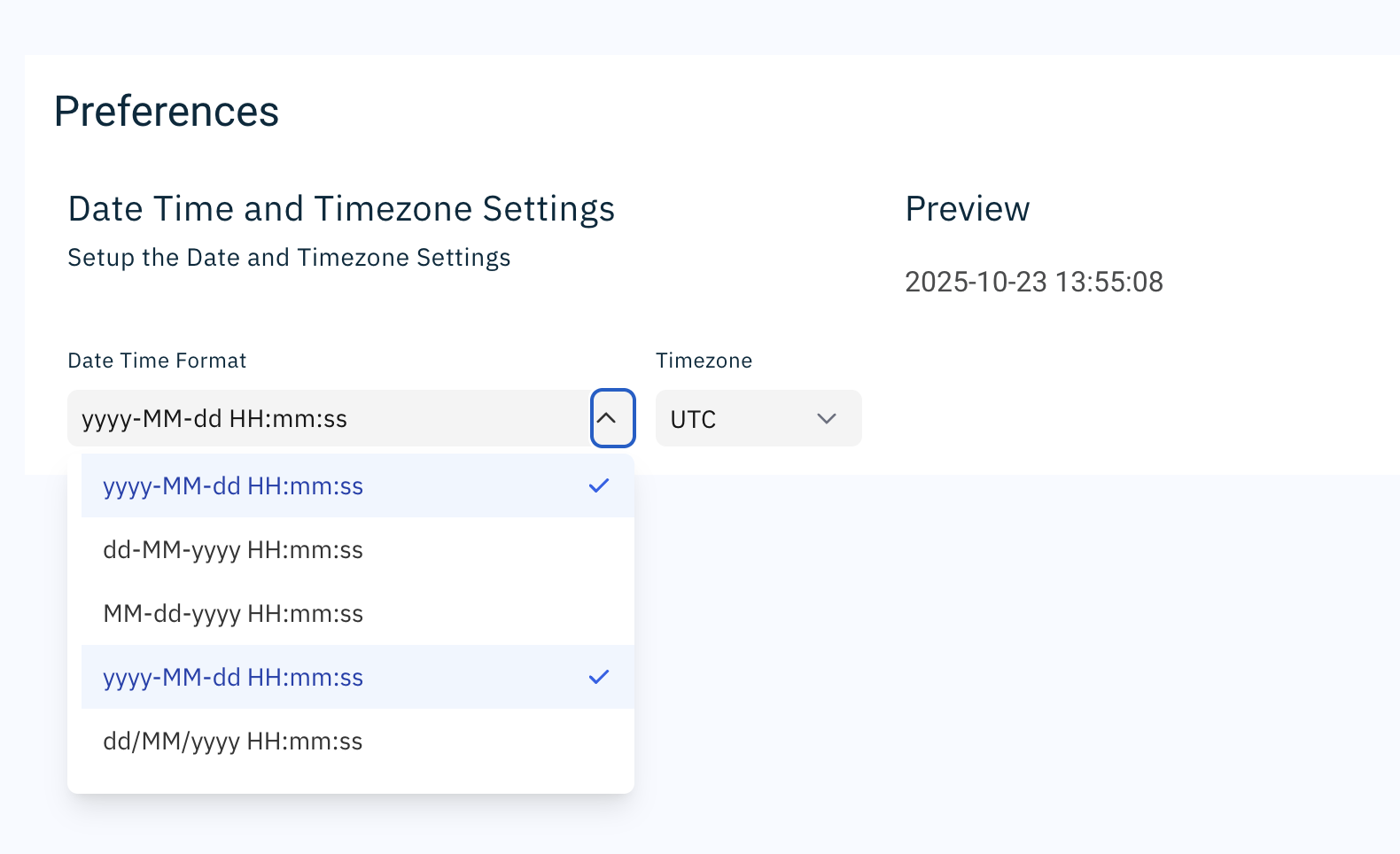
- Date Time Format
- Defines how dates and times appear in the platform.
- Example:
yyyy-MM-dd HH:mm:ss→ displays as 2025-09-05 15:20:09. - Choose the format that matches your institution’s reporting standards or your personal preference.
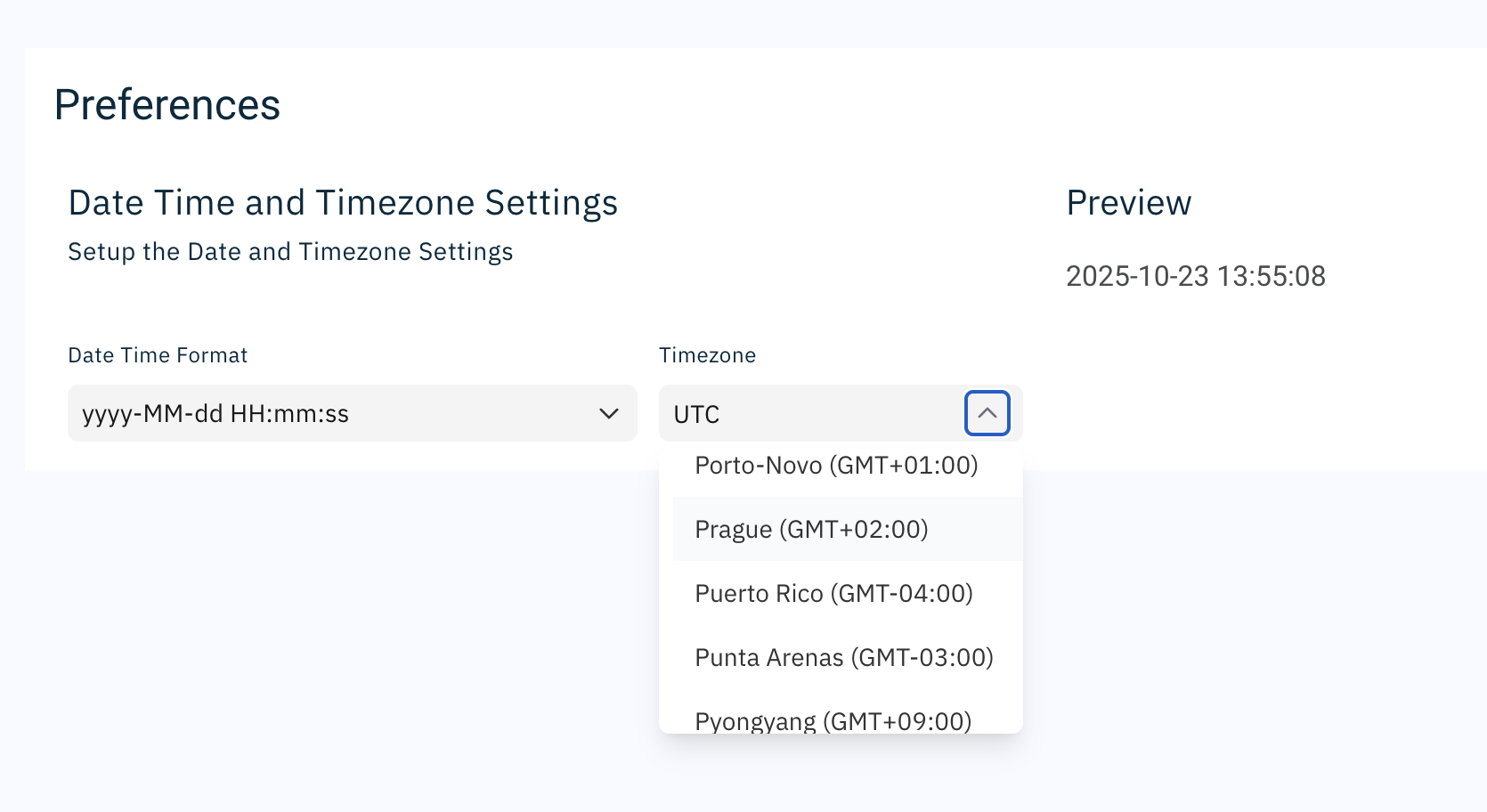
- Timezone
- Select your preferred timezone from the dropdown list (e.g., Prague GMT+02:00).
- All timestamps in the platform will be shown according to this setting.
- Preview
- Shows a live preview of how the selected date/time settings will appear throughout the system.
- Ensure the Timezone matches your operational location to avoid confusion during reconciliation or investigations.
- When working with colleagues in different regions, always confirm whether they are using local time or UTC to interpret transaction timestamps.
Dark Mode / Light Mode
ImPAI allows you to switch between Light Mode ☀️ and Dark Mode 🌙 to make the interface more comfortable in different environments.
When you toggle the display mode:
- The interface instantly switches between the bright Light Mode and the reduced-glare Dark Mode.
- Dark Mode helps reduce eye strain, especially when working in low-light or evening settings.
- The menu option updates dynamically — it shows
- 🌙 Dark Mode when you’re currently in Light Mode, and
- ☀️ Light Mode when Dark Mode is active.
- Simply click the entry at any time to switch back.
Logout
Logging out safely ends your current session in ImPAI.
This ensures that no one else can access your data, especially if you are stepping away from your device.
When you choose Logout:
- Your active session is closed immediately.
- Any unsaved work must be re-entered after the next login.
- You will need to provide your credentials again the next time you access the platform.
For security reasons, always log out when using a shared, public, or borrowed computer.
This prevents unauthorized access to sensitive payment data.