Sign in, Sign out and Access ImPAI
Sign in to ImPAI
To access the platform, you can either sign in using Single-Sign-On (SSO) with your Microsoft account, or – if you do not have a Microsoft account – you can still log in using your 👉 platform credentials via the User Name and Password fields above.
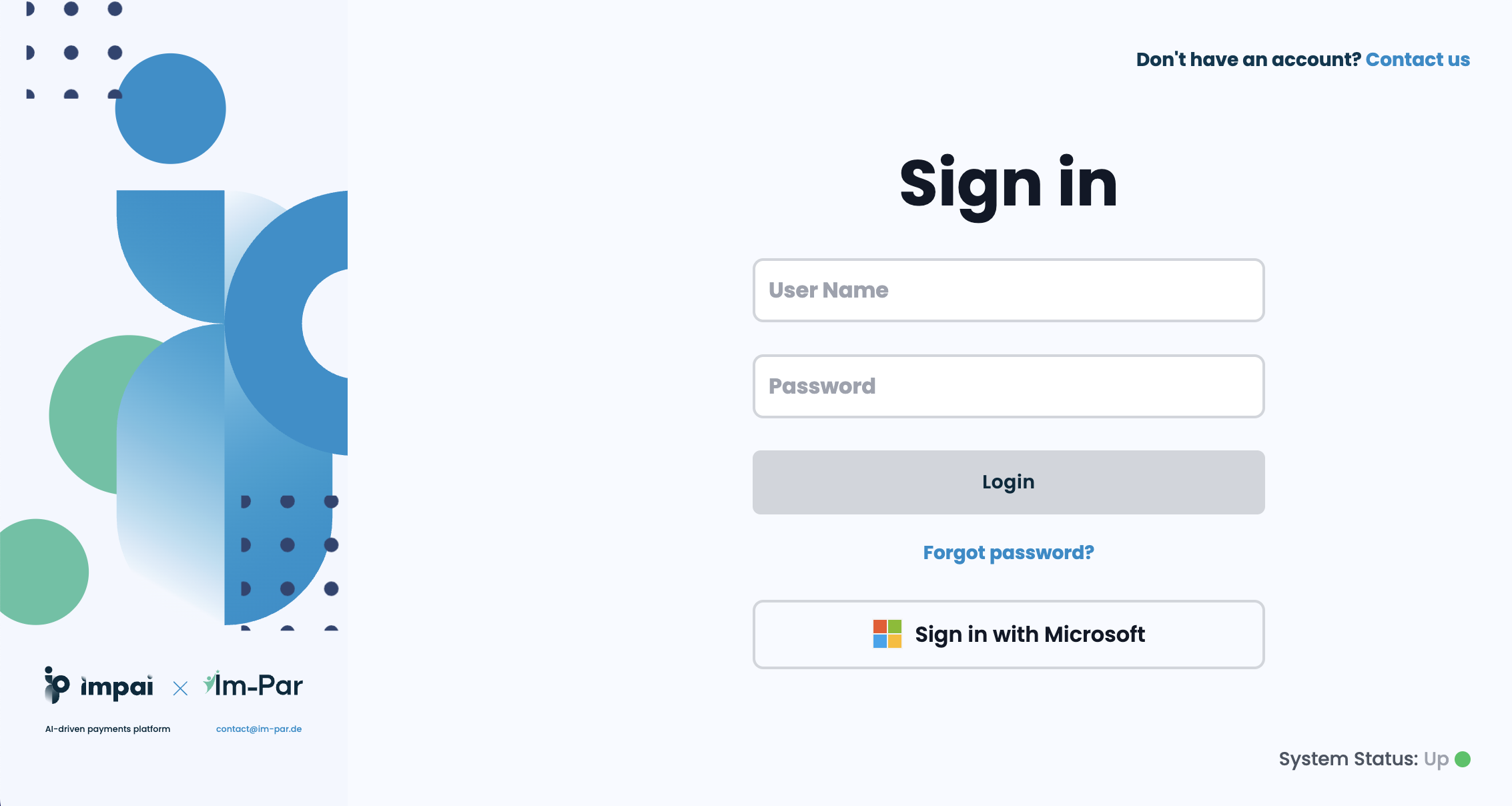
The screens and actions available to you depend on your assigned roles and permissions.
See 👉 Roles & Permissions for more information.
Sign in with Microsoft
To access the platform, you can sign in using your Microsoft account. This is the recommended login method for users whose organization uses Microsoft 365 or Azure Active Directory.
- Click on the Sign in with Microsoft button at the bottom of the login form.
- You will be redirected to the Microsoft sign-in page where you can enter your work email and password.
- After successful authentication, you will be redirected back to the platform dashboard.
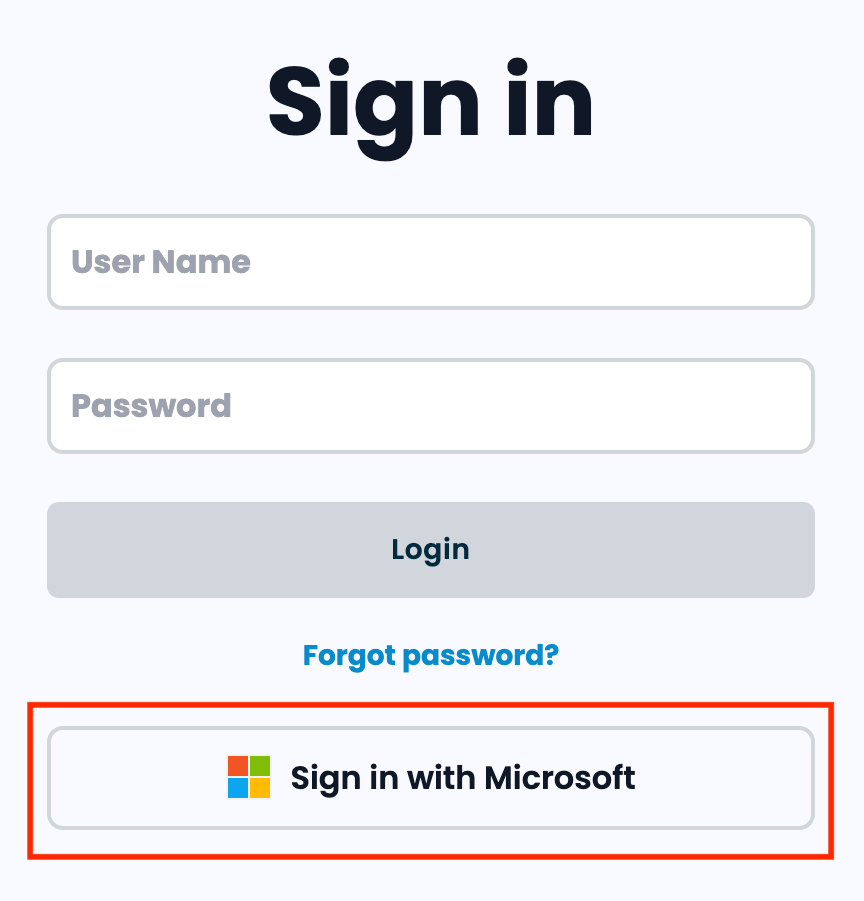
This method provides a secure single sign-on (SSO) experience, eliminating the need to remember separate login credentials for the platform.
Sign in with Platform Credentials
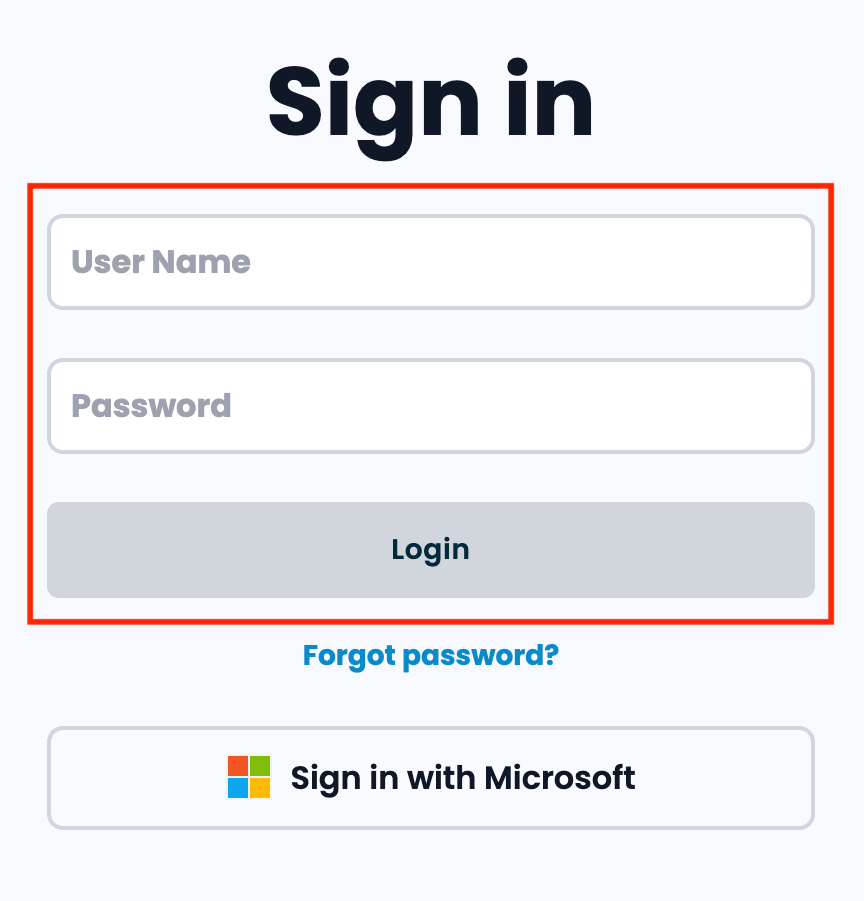
If you do not have a Microsoft account, you may log in using your platform credentials via the User Name and Password fields.
- Fill in the User Name field with your credentials.
- Fill in the Password field with your credentials.
- Click on the Login button to start the authentication process and access the platform.
User Roles and Permissions
Access to the ImPAI platform may be limited depending on the user’s assigned role.
Typical roles might include Operations, Payment Processing, or Audit, each with different access rights to view or export data.
Role-based permissions will be defined later and may affect which columns and actions are available.
Sign out
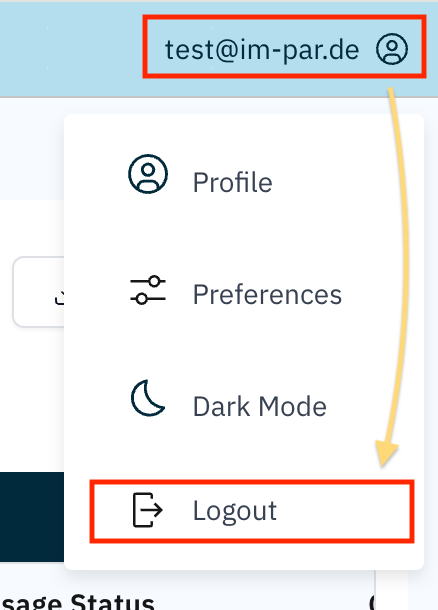
Once you are signed in to the front-end you can sign out again manually by selecting the Logout menu option.
- Click on your login name in the top right corner to open the menu.
- Click on the Logout menu to sign out of the platform.
Session Timeout
For security reasons, ImPAI automatically ends your session after a period of inactivity or after reaching the maximum session duration.
- Inactivity Timeout If there is no user activity (no clicks, typing, or navigation) for a defined time, the session will automatically log out. This helps protect access if you leave your workstation unattended.
- Total Session Timeout Even with activity, every session has a maximum lifetime. After this time is reached, the system will log out automatically, and you will need to sign in again.
- Always save your work regularly to avoid losing progress when a session expires.
- If you expect to be away from your desk, it is recommended to log out manually instead of waiting for the timeout.