Error Handling
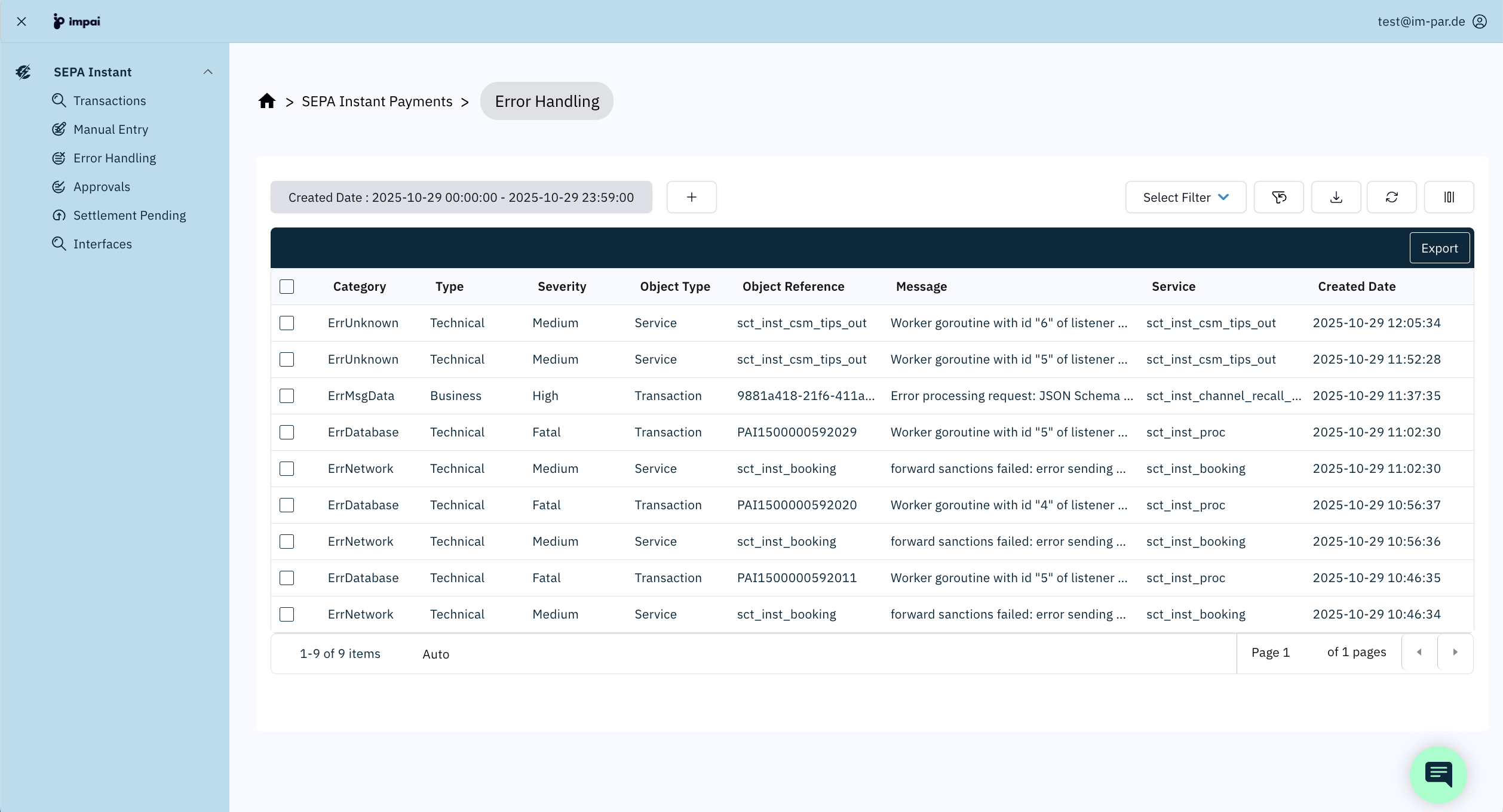
The Error Handling screen provides a consolidated view of all error messages raised by the SEPA Instant Payment process. It allows users to monitor the business and technical errors, check detail information, and export error data for reporting or analysis.
See 👉 Working with Table Views for shared controls.
Key Features
-
Generic Search
- Displays all errors within the selected Created Date range and further criteria.
- You can further refine the view by applying filters (e.g., Status, Object Type, Service).
-
Error Details
- See the full details of each error listed.
- Display the error information.
Generic Search
Each row in the error table represents a single error entry.
The list displays both business and technical errors, making it the central point for monitoring the current and past system error situation.
A Created Date range filter at the top defines which errors are displayed.
Additional filters are available for attributes such as service, severity, category, status, and others.
Details about filtering, saving, and loading filter sets are described in the section 👉 Filter Panel.
Table Columns
| Column | Description |
|---|---|
| Category | The error category like an error in a transaction's data or when accessing the database (for example, ErrMsgData or ErrDatabase). |
| Type | Indicates whether the error is Business or Technical related. |
| Severity | The severity class of this error (i.e, Fatal – The system stopped completely, High – Transaction was stopped, but system still runs, Medium – Transactions was affected but processed, Low – Transaction was not affected and processed). |
| Object Type | Which kind of module raised the error (i.e., Service, Transaction, Directory, File). |
| Object Reference | An identification to identify the object that raised the error. Could be a service or file name, transaction id, etc. |
| Message | The actual error message. |
| Service | The service name that raised the error. |
| Created Date | Timestamp when the error was created by the platform. |
| Internal Code¹ | The internal error code specifically related to this error. |
| Object Reference Type¹ | The type of the given object reference, e.g a Transaction Id, a File Name, etc. |
| Status¹ | The status of the error |
¹ These columns are hidden by default.
All columns can be made visible or hidden depending on the selection of the user. Click on the  Column Settings button to make your choice.
Actions and Interaction
| Action | Description |
|---|---|
| Double-click a Row | Opens the Error Details screen (see the corresponding chapter). |
| Export | Exports the list of displayed errors. Supported formats: CSV and PDF. |
| Refresh | Reloads the error data with the current filter settings. |
| Save / Load Filter Set | Stores the currently applied filters or reloads a saved configuration. |
| Clear Filters | Resets all filter criteria to default values. |
Complete Filter Reference
In the Filter Panel you may choose between the following filters to narrow down the search result displayed in the error table:
Category Filter
The Category filter lets you refine errors based on the category the error falls under.
Options:
- Authentication Error – Error during authentication of the user.
- Authorization Error –
- Buffer Error –
- Configuration Error –
- Conflict Error –
- Database Error – Error when accessing the database.
- File System Error – Error when accessing the files or directories.
- JSON Decode Error –
- JSON Encode Error –
- Message Store Error –
- Network Error –
- Not Implemented –
- Panic Error –
- Parameters Error –
- Repository Error –
- Timeout Error –
- Type Conversion Error –
- Unknown Error – Unknown error classification.
- XML Decode Error –
- XML Encode Error –
Created Date Filter
The Created Date filter allows you to view errors based on when they were created by the system.
Select Date Range:
- Choose a start date and an end date using the calendar picker.
- The error list updates to show only items created within that period.
- Enter a start date only, to display all errors greater than or equal to that timestamp.
- Enter an end date only, to display all errors less than or equal to that timestamp.
- Enter both dates, to display all errors within the specified range.
Object Reference Filter
The Object Reference allows to filter for specific ids from the causing object, like a transaction id, a file name, or a service name.
Enter Reference:
- Type or paste the Reference of the underlying object into the search field.
- The error list updates to show only errors where the object reference matches the entered id.
Object Reference Type Filter
The Object Reference Type filter lets you refine errors based on the type of of the reference of the underlying object.
Options:
- External Id – The External Id of a transaction.
- Global Id – The Global Id of a transaction.
- Id – .
- Internal Id – The Internal Id of a transaction.
- Name – A file name or service name.
- Transaction Id – The Transaction Id of a transaction.
Object Type Filter
The Object Type filter lets you refine errors based on the type of object which was causing the error.
Options:
- Directory – A directory access error.
- File – A file access error.
- Service – An ImPAI service that raised the error.
- Transaction – An issue with the transaction (message) itself.
Severity Filter
The Severity filter lets you refine errors based on the severity class.
Options:
- Fatal – A fatal error that stopped the system or a service completely, or blocks it.
- High – A severe error that stopped or blocks a specific transaction.
- Low – A minor error that did not affect a specific transaction.
- Medium – An error that affected a specific transaction but did not stop it.
Service Filter
The Service filter lets you refine errors based on the service that raised the error.
Enter Service Name:
- Type or paste the Service Name of the service raising the error into the search field.
- The error list updates to show only errors where the service matches the name entered.
Status Filter
The Status filter lets you refine errors based on the severity class.
Options:
- New – A newly created error, not yet handled.
To monitor for errors to be picked up and handled, filter for the New status.
Related Topics
Error Details
In the Error Detail view the full error information is displayed. This allows a deep understanding of the current status of the error and its background.
What You See in Error Handling Details
All available information about the opened error is presented in a single screen.
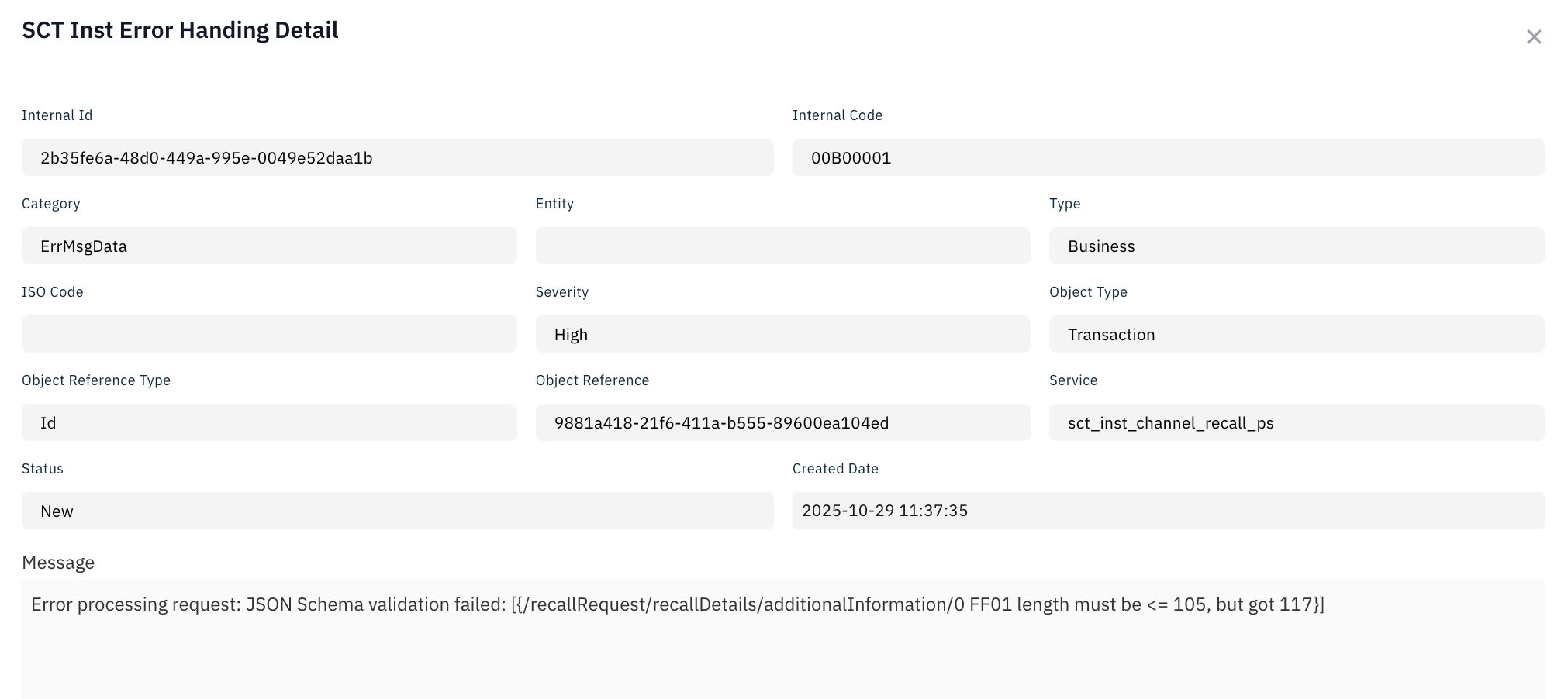
This form displays all the information which is made available in the table described above plus a few more details:
| Field | Description |
|---|---|
| Internal Id | The id given to each message by the system automatically, identifying it uniquely. |
| Entity | The entity name for which this error was raised. |
| ISO Code | An optional error code from the 4-characters ISO20022 code standard. |
Also, the actual error message text is displayed in a larger field to ensure a better readability.
Closing Error Handling Details
In order to close this detail screen again, you need to click on the cross in the uppermost right corner of the screen. You will come back to the Error Handling screen from where you opened the Error Handling Details screen.