Transactions
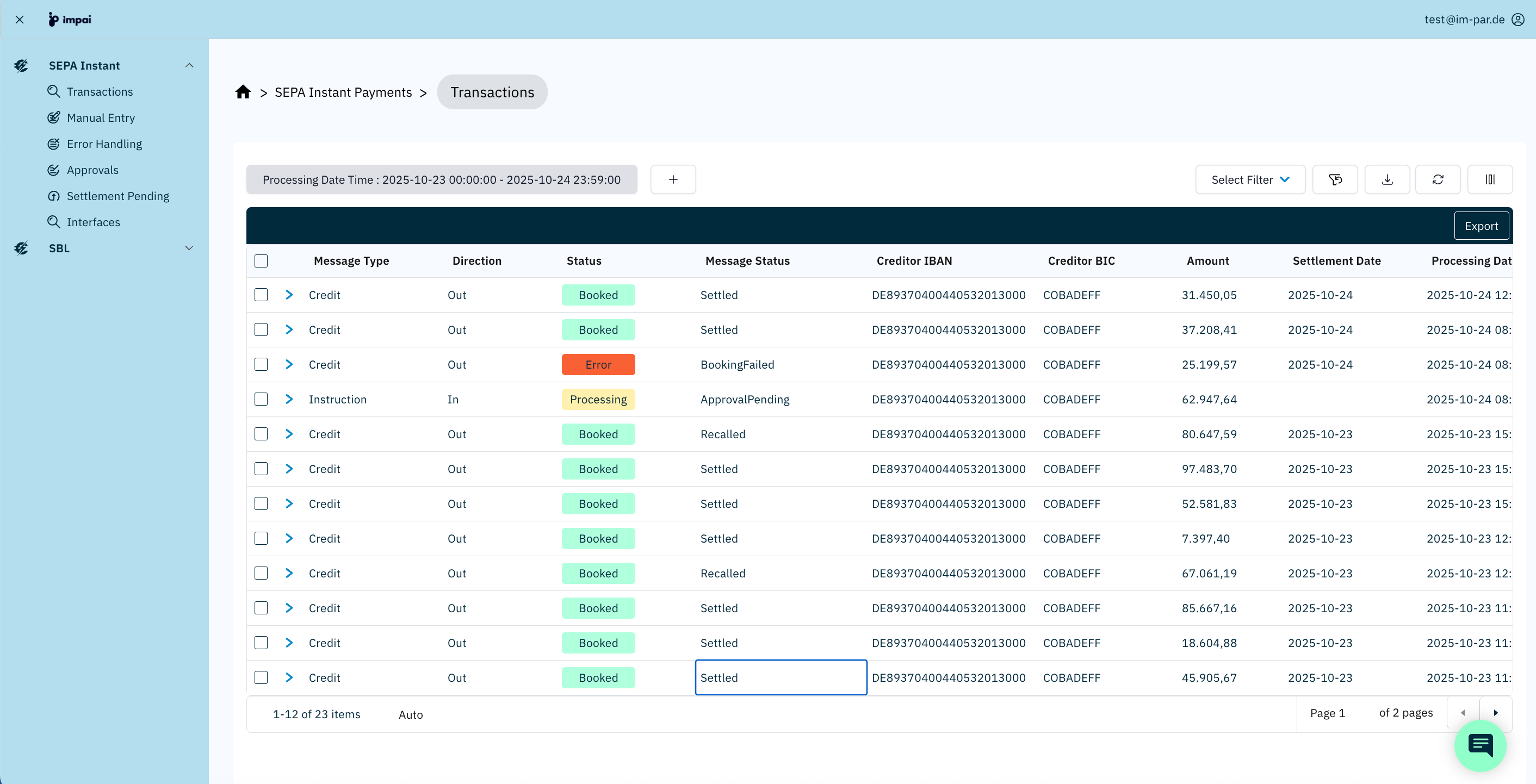
The Transactions screen provides a consolidated view of all payment messages within the selected processing domain / payment scheme processed by the system, regardless of their actual status and direction. It allows users to monitor the processing results, check settlement information, and export transaction data for reporting or analysis.
See 👉 Working with Table Views for shared controls in the screen.
Key Features
-
Generic Search
- Displays all transactions within the selected Processing Date Time and further criteria.
- You can further refine the view by applying filters (e.g., Status, Direction, Creditor IBAN).
-
Grouping by Global Id
- Transactions are automatically grouped under their Global Id.
- This is similar to how emails are threaded in an inbox: one Global Id represents a single payment flow, and all related messages (instruction, execution, confirmation, return, etc.) are nested under it.
- Expand the group by clicking on the arrow icon next to a transaction row.
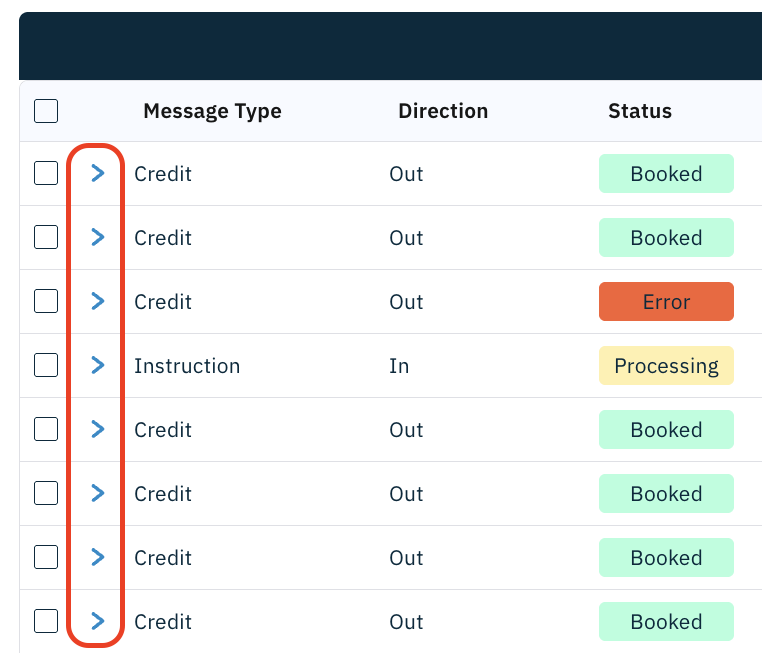
- This reveals all related messages tied to the same Global Id, making it easier to follow the entire lifecycle of the payment.
- Collapse the row to return to a summarized view.
-
Transaction Details
- See the full details of each transaction listed.
- Display the payment data.
- Display processing information for monitoring and resolution reasons.
Generic Search
Each row in the transaction table represents a single payment transaction.
The list displays both successfully processed and failed transactions, making it the central point for reviewing the current and past processing results.
A Processing Date Time range filter at the top defines which transactions are displayed.
Additional filters are available for attributes such as amount, direction, creditor, status, and others.
Details about filtering, saving, and loading filter sets are described in the section 👉 Filter Panel.
Table Columns
The set of columns displayed may vary depending on the screen type and the functional area you are working in. Each screen shows only the fields relevant to its purpose.
| Column | Description |
|---|---|
| Message Type | The message type associated with the transaction according to the used payment scheme (for example, Credit or Instruction). |
| Direction | Indicates whether the transaction is In (incoming to ImPAI) or Out (outgoing from ImPAI). |
| Status | High-level processing status (for example, Booked, Error, Processing). Color-coded for quick recognition: 🟢 Green – successfully processed 🔴 Red – timeout or failure detected 🟡 Yellow – In progress ⚪️ Gray – Processing not started. |
| Message Status | More specific message-level state (for example, Settled, ApprovalPending, BookingFailed). |
| Creditor IBAN | Account information of the payment receiver. |
| Creditor BIC | Bank information of the payment receiver. |
| Amount | Transaction amount in the original currency. |
| Settlement Date | The date when the payment was or will be settled. |
| Processing Date | Timestamp when the transaction was processed by the platform. |
| Global Id | Acts as a thread identifier, linking all subsequent messages. |
| Transaction Id | The key identifier for the transaction over all involved parties. |
| Internal Id | A unique system-level reference for the message. |
| Message Version | The exact ISO20022 message version used. |
| Creditor Name¹ | Name of the payment receiver. |
| Currency¹ | The payment's currency. |
| Debtor BIC¹ | Bank information of the payment sender. |
| Debtor IBAN¹ | Account information of the payment sender. |
| Debtor Name¹ | Name of the payment sender. |
| External Id¹ | An additional external identifier for the transaction. |
¹ These columns are hidden by default.
All columns can be made visible or hidden depending on the selection of the user. Click on the  Column Settings button to make your choice.
Actions and Interaction
| Action | Description |
|---|---|
| Expand Row | Opens the list of all related messages for the selected transaction. |
| Double-click a Row | Opens the Transaction Details screen (see the corresponding chapter). |
| Export | Exports the list of displayed transactions. Supported formats: CSV and PDF. |
| Refresh | Reloads the transaction data with the current filter settings. |
| Save / Load Filter Set | Stores the currently applied filters or reloads a saved configuration. |
| Clear Filters | Resets all filter criteria to default values. |
Related Topics
Transaction Details
In the Transaction Detail view both high-level status and full payment information are displayed. This allows a deep understanding of the current status of the payment and its background.
What You See in Transaction Details
You will find three main areas at the screen.
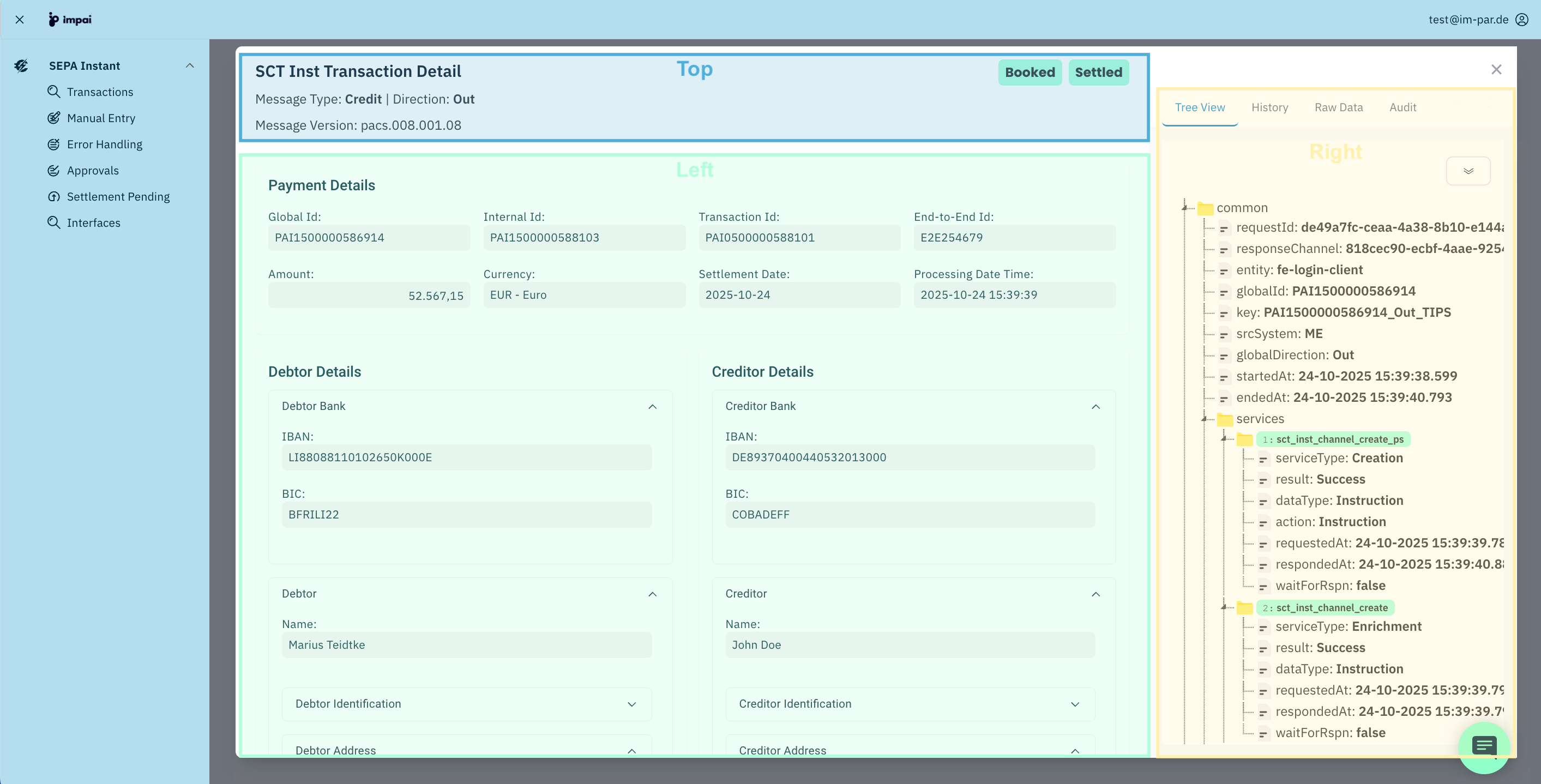
Top Area
This area on the top shows some high level information of the payment:
- Status – e.g., BOOKED, SETTLED, REJECTED.
- Message Type – type of payment message, such as Credit (pacs.008), Instruction (pain.001), Status Report, etc.
- Direction – whether the message is Incoming or Outgoing.
- Message Version – ISO 20022 version (e.g., pacs.008.001.08).
Below, the screen is divided into two main parts:
Payment Area
This area on the left shows the business data (transaction and party information) of the payment:
- Payment Details – Global Id, Internal Id, Transaction Id, End-to-End Id, Amount, Currency, Settlement Date, Processing Date Time.
- Debtor Details – Debtor bank (IBAN, BIC), Debtor name, optional identification and address.
- Creditor Details – Creditor bank (IBAN, BIC), Creditor name, optional identification and address.
Processing Area
This area on the right contains tools for deeper analysis offering additional technical and message views:
- Tree View – hierarchical breakdown of the message content.
- History – timeline of the transaction lifecycle (e.g., instruction created, sent to ACH, response received).
- Raw Data – full ISO 20022 message in original format.
- Audit Data – system-level metadata such as request Ids, timestamps, and response channels.
- Use the top area for a quick overview of status and message type.
- Use the payment area when answering operational questions (who paid, how much, when settled).
- Use the processing area for investigations and technical checks (raw message content, ACH responses, validation results).
Payment Area
Opening Transaction Details
To see the full details of a transaction, you need to double-click on any row you would like to get additional information about in the Transaction Search screen. This opens the Transaction Detail view, giving you a comprehensive overview of the payment.
Expanding and Collapsing Party Information
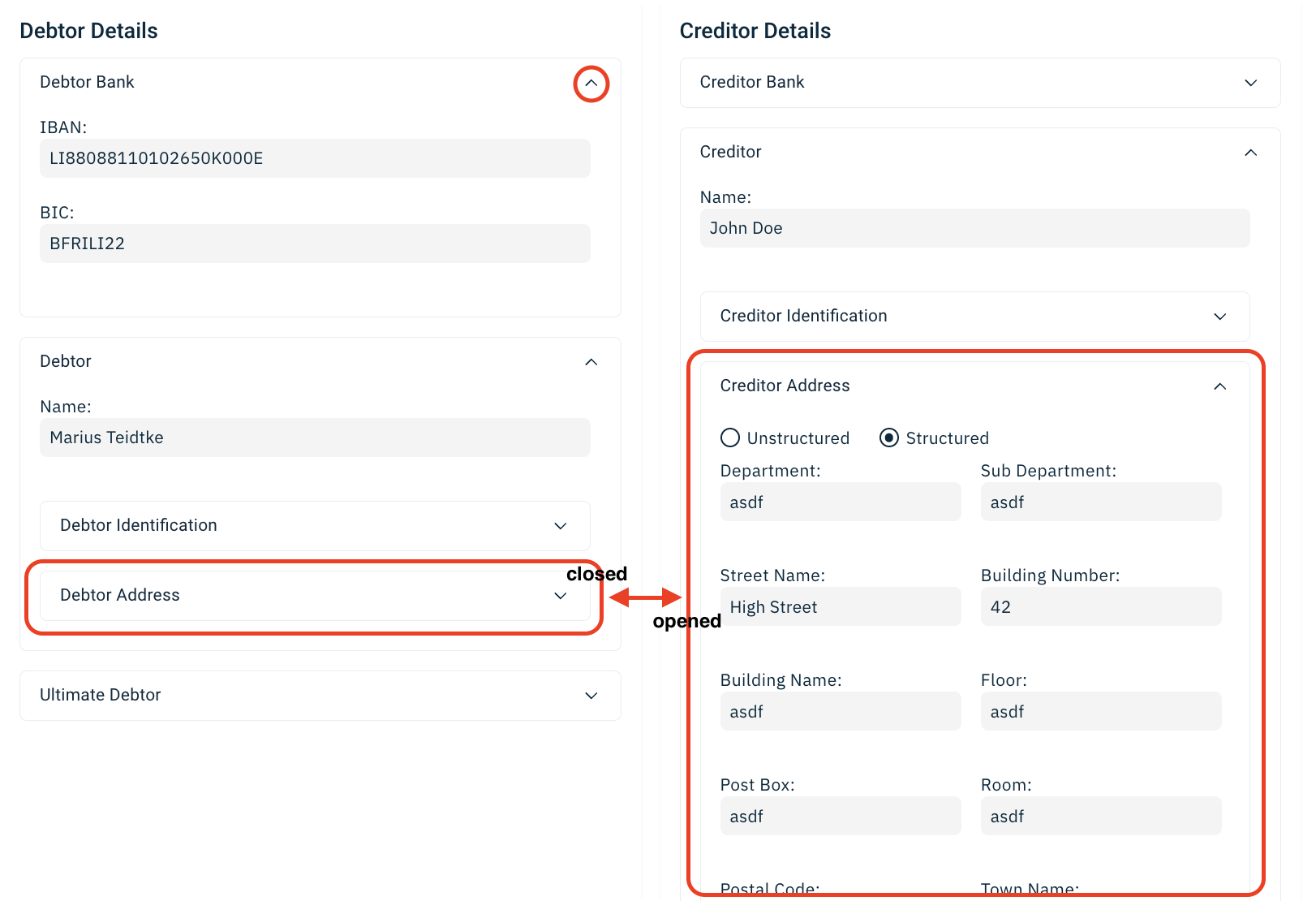
In the Payment Details view, the Debtor and Creditor Details sections are designed to be expandable. This helps you focus only on the information you need.
How it Works
- Each subsection (e.g., Debtor Bank, Debtor, Debtor Identification, Debtor Address) has a collapse/expand toggle.
- By default, key details like Name, IBAN, and BIC are visible.
- Additional details, such as identification or structured address fields, can be revealed by expanding the section.
Closing Transaction Details
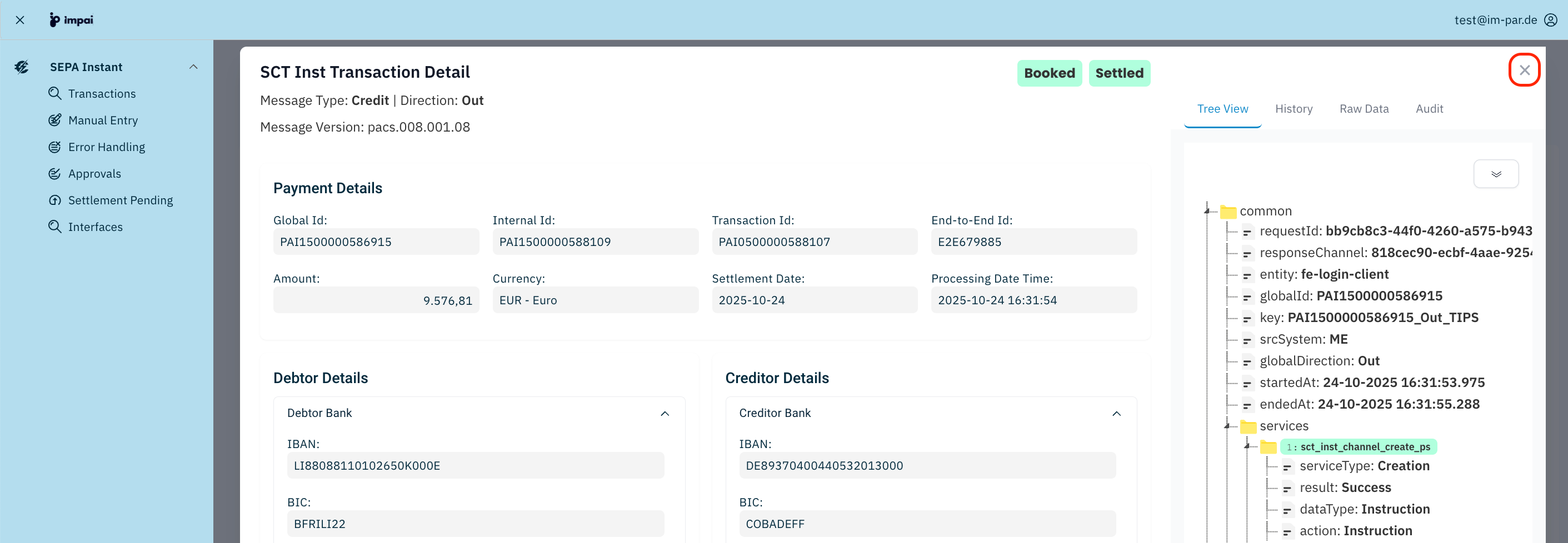
In order to close this detail screen again, you need to click on the cross in the uppermost right corner of the screen. You will come back to the Transaction Search screen from where you opened the Transaction Details screen.
Processing Area
Tree View
The Tree View tab on the right panel in the Transaction Detail screen provides a structured breakdown of the payment’s lifecycle and technical processing steps.
What You See
- The Tree View is organized into expandable folders, similar to a file explorer.
- Clicking on the double arrow icon in the top right corner of the Tree View expands or collapses all folders at the same time.
- Each folder represents a service or processing step that the transaction passed through.
- Additionally, it presents the actual message data in a strctured way.
- Use Tree View first when troubleshooting: it quickly shows where the process succeeded or failed.
- Combine with Raw Data for exact message content if a regulator or correspondent bank asks for details.
Services and Workflow
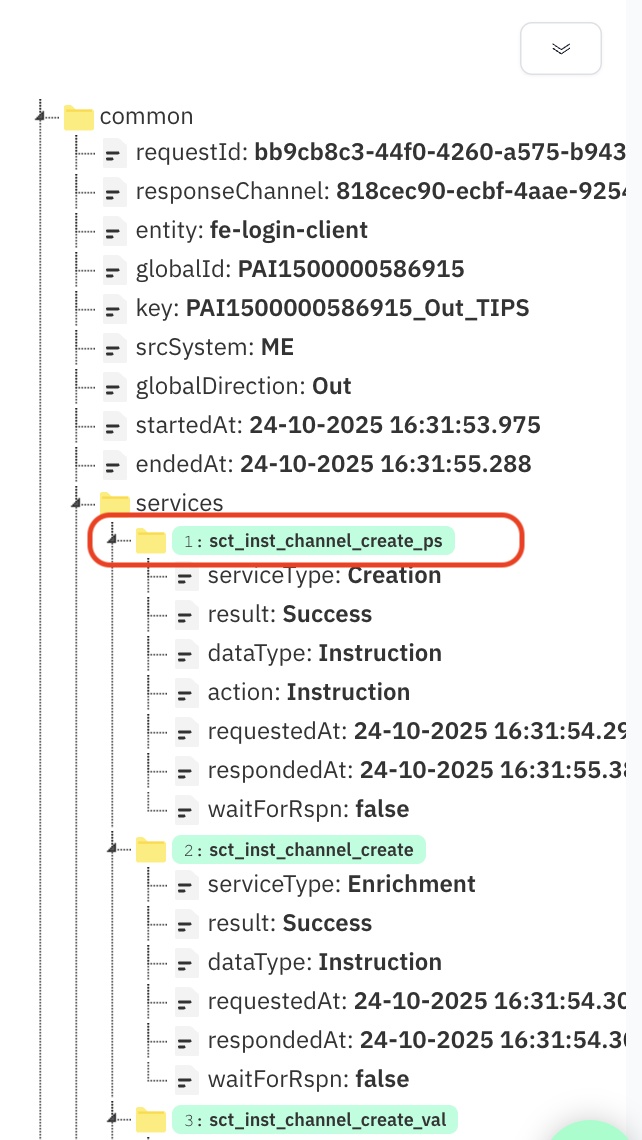
Each entry in the folder services corresponds to one of the microservices that handled the payment. This information allows to drill down understanding the actual workflow which was executed for this particular payment transaction.
What You See
-
The numbering (1, 2, 3 …) indicates the execution order of these services.
-
The workflow is configurable, meaning your institution’s setup determines which services are triggered, in which order, and with what parameters.
-
For each service step, you can see:
- serviceType – type of action (e.g., Creation, Validation, Settlement).
- result – processing outcome of that step (Success, Error, Timeout).
- dataType – kind of message or action processed (e.g., Instruction, Confirmation).
- action – the specific task executed.
- timestamps – when the request was sent and when it was responded to.
- flags – such as waitforrspn: true/false (whether the system expected a reply).
Why It Matters
- Operational Insight – See exactly how a transaction passed through the processing chain.
- Configurable Flexibility – Since workflows are tailored, different banks or payment schemes may have slightly different service paths.
- Error Resolution – If a payment fails, Tree View shows which service step caused the failure.
- Performance Monitoring – Review service timings to spot delays in specific microservices.
- Use Tree View when you need to trace the journey of a payment through the system.
- If you see multiple services with Success but the final status is Error, the problem likely lies in a later step of the workflow.
Tree View – Common Section
At the top of the Tree View, you will find a folder holding the common section. This area contains metadata that applies to the entire transaction flow, regardless of which microservice processed it.
What You See
- requestId – Unique identifier of the request in the system. Useful for tracking logs and correlating with other system components.
- responseChannel – The communication channel used for the response (e.g., UI, API).
- entity – The client or application entity that initiated the transaction (e.g., fc-login-client).
- globalId – The Global Id of the transaction (groups all related messages).
- key – Internal reference key generated by the system, often combining identifiers like Global Id and direction.
- srcSystem – Source system where the request originated (e.g., ME).
- globalDirection – Indicates whether the transaction is In (incoming) or Out (outgoing).
- startedAt – Timestamp when processing of this transaction began.
- endedAt – Timestamp when processing finished.
- configId – The id of the workflow configuration used to process this transaction.
- schemaProcessor – The id of the payment scheme processor service.
- csmRouting – The Clearing House target for processing this transaction with.
- srcService – Source service in the ImPAI platform which first received this transaction.
- crtdBy – User id of the requestor of the original request.
- createdAt – Timestamp when the original request was created in the platform.
Why It’s Useful
- High-level overview – Quickly confirms which system and channel initiated the payment.
- Audit traceability – Each requestId and globalId ensures a transaction can be traced end-to-end.
- Performance check – Comparing startedAt and endedAt gives total processing time.
- Error tracking – If a service step fails, the common section confirms whether the issue came from the input channel, the system, or workflow configuration.
When troubleshooting, always review the common section first before diving into services. It shows the origin, channel, and direction of the payment, which helps narrow down where problems may have occurred.
Tree View – Data Section
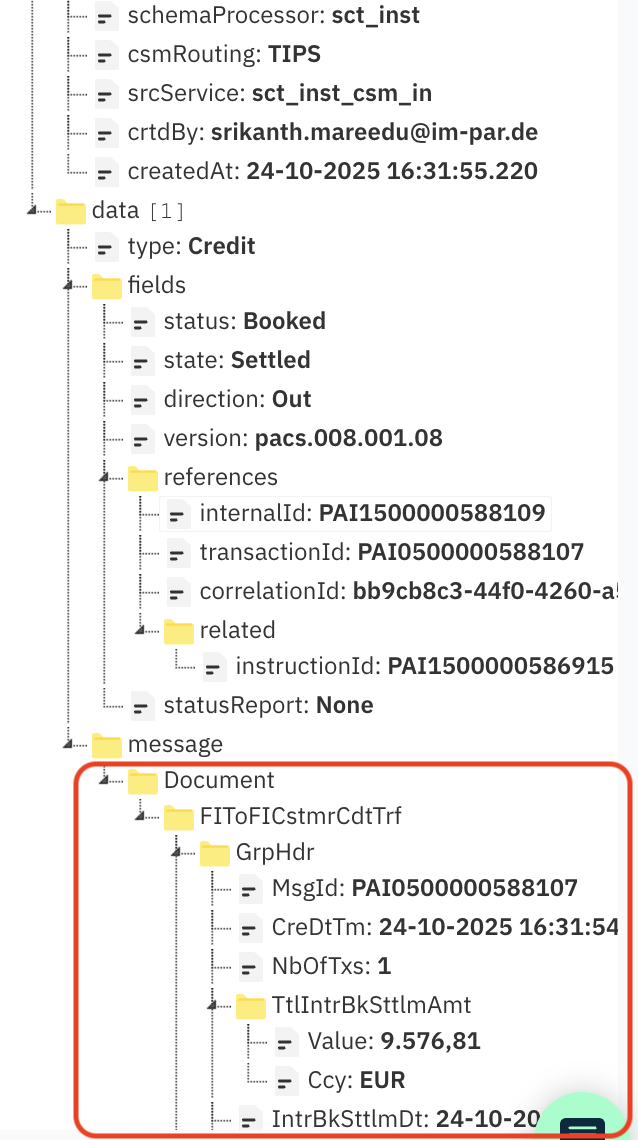
The data section represents the XML structure of the transaction message. It organizes the payment content into key fields and references, allowing you to review what was sent, received, or generated by the system.
What You See
All these fields presented in this section are related to this very message and not covering information about the overall transaction.
-
type – The message type (e.g., Credit).
-
fields – High-level attributes of the transaction:
- status – Current processing result (e.g., Booked).
- state – Lifecycle outcome (e.g., Settled, Rejected).
- direction – In (incoming) or Out (outgoing_).
- version – The ISO 20022 message version used (e.g., pacs.008.001.08).
- references – Collection of identifiers that link the transaction to different systems and flows:
- msgId – Original message identifier.
- internalId – Platform’s internal unique Id.
- transactionId – Transaction reference generated by the system.
- correlationId – Id for linking across related processes.
- instructionId – Id carried in the instruction (if applicable).
- hash – Integrity check for the transaction data.
- statusReport – If a status report was generated.
- createdBy – The system or user that created the record.
- related – Ids pointing to related messages
- instructionId
-
message – The actual XML payload of the payment message:
- Organized under Document, it shows the same hierarchy as in ISO 20022 (e.g., FIToFICstmrCdtTrf > GrpHdr > TxInf).
- Includes details such as:
- MsgId – ISO 20022 message identifier.
- CreDtTm – Creation date and time.
- TtlIntrBkSttlmAmt – Interbank settlement amount.
- Debtor and Creditor details as per the message content.
History
Click on the History tab to display a list of all related messages which are grouped by the same Global Id. Each entry also shows its processing time and further information. You may click on the message type (e.g., pacs.008) to jump to the details of that message.
The messages are listed in the order of their processing time, starting with the oldest.
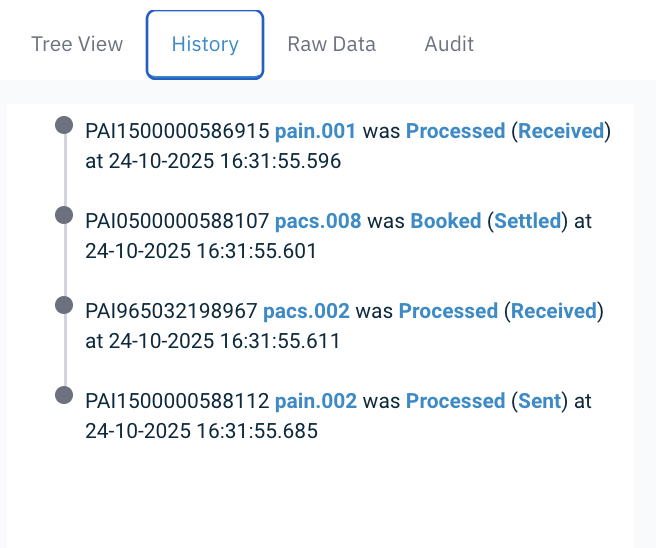
What You See
For each of the entries the following data is displayed:
- Processing timestamp
- Message type
- Message status
- Message direction
Raw Data
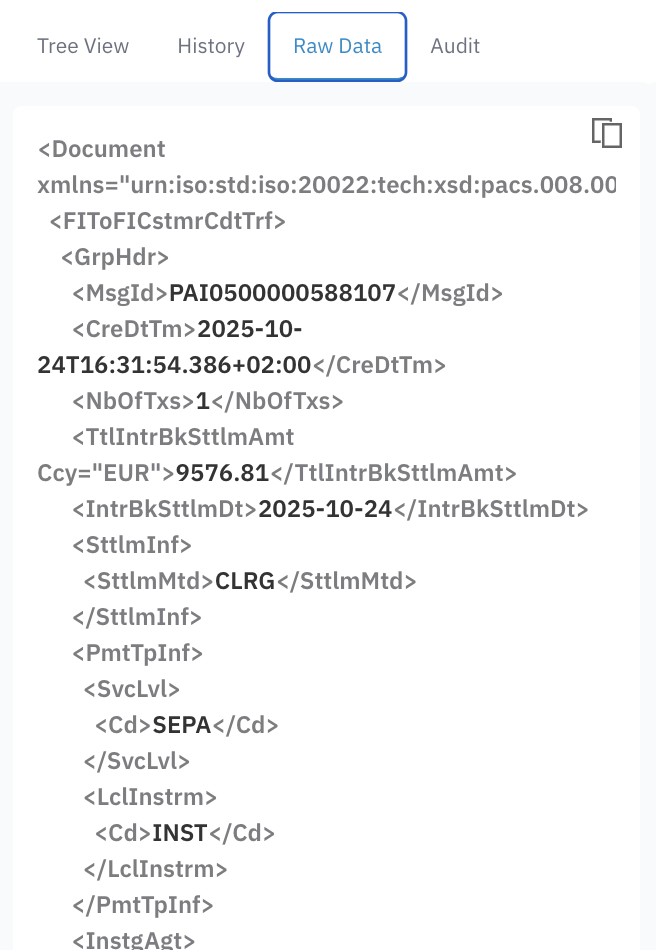
Click on the Raw Data tab to display the underlying message in their original format (e.g., XML, JSON, ISO20022). You may click on the copy icon (⧉) in the upper right corner to copy the full set of data into the clipboard.
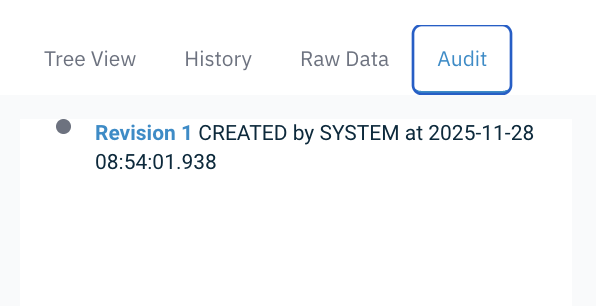
Audit
Click the Audit tab to view the change history for the selected message.
Each entry shows a revision number, the user who made the change, and the timestamp, allowing you to trace how the message evolved over time.
To inspect a specific revision, simply click its revision number. The system will display the corresponding version of the message in the Payment Area on the left.