Approvals
The Approvals screen provides a consolidated view of all transactions waiting for approval by a user. It allows users to monitor to review and approve or reject pending transactions, check transaction details, and approve or reject transactions.
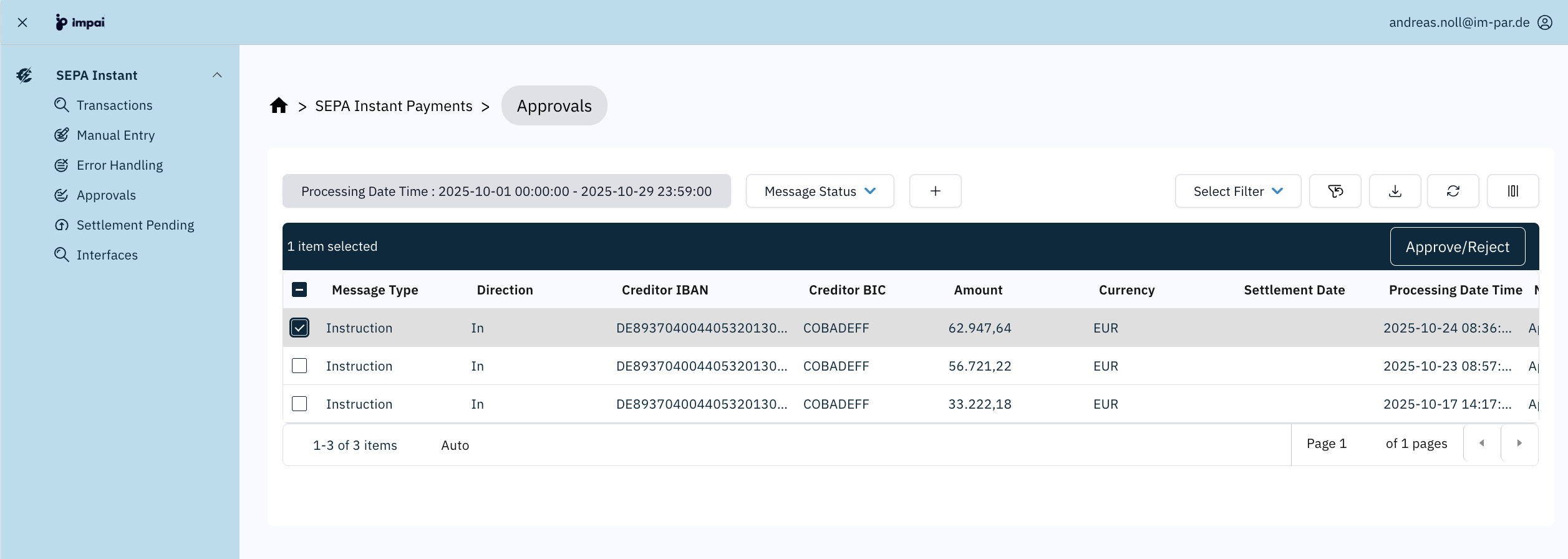
This page focuses only on SEPA Instant–specific features of the Approvals screen.
If you need more context, the following topics may help.
Understand the full capabilities of the Approvals screen across all payment areas:
Learn about the generic controls used across all table views:
Complete Filter Reference
In the Filter Panel you may choose between the following filters to narrow down the search result displayed in the transaction table:
Amount Filter
The Amount filter lets you search for transactions based on their payment value.
Enter Range:
- Type a minimum value (e.g.,
10000) to display only transactions above that amount. - Optionally, enter a maximum value to limit the upper range.
- The table updates automatically to show transactions within the specified range.
- Enter a minimum value only, to display all transactions greater than or equal to that amount.
- Enter a maximum value only, to display all transactions less than or equal to that amount.
- Enter both values, to display all transactions within the specified range.
Creditor/Debtor BIC Filter
The Creditor BIC filter lets you search transactions by the beneficiary’s or payer’s bank.
Enter BIC:
- Type or paste the BIC (Bank Identifier Code) of the creditor’s or payer’s bank.
- The transaction list updates to show only payments where the receiving or sending bank matches the entered BIC.
Creditor/Debtor IBAN Filter
The Creditor IBAN or Debtor IBAN filter lets you find transactions linked to a specific beneficiary or payer account.
Enter IBAN:
- Type or paste the IBAN of the beneficiary (creditor) or payer (debtor) into the search field.
- The table will update to show only transactions where the selected IBAN is the receiving or sending account.
Creditor/Debtor Name Filter
The Creditor Name or Debtor Name filter lets you search for transactions by the beneficiary’s or payer’s account holder name.
Enter Name:
- Type the creditor’s or payer’s name (or part of it) into the search field.
Direction Filter
The Direction filter helps you distinguish between payments sent by your bank and those received from other banks.
Options:
- Incoming – Payments received from other banks.
- Outgoing – Payments initiated by your bank.
Global Id Filter
The Global Id filter allows you to search and group transactions that belong to the same end-to-end payment flow. Unlike other ids that identify a single message, the Global Id connects all related messages exchanged during the lifecycle of a payment.
Enter Global Id:
- Type or paste the Global Id into the search field.
- The transaction list updates to display all messages belonging to that Global Id.
Use Global Id whenever you need to understand the full story of a payment.
Internal Id Filter
The Internal Id filter allows you to locate a transaction using the unique identifier generated by the payments platform.
Enter Internal Id
- Type or paste the Internal Id into the search field.
- The transaction list will display the exact record tied to that Id.
- Use Internal Id when troubleshooting within the platform or coordinating with technical teams.
- For interactions with external parties (banks, ACH, customers), use Transaction Id or Global Id instead, since they are recognized outside the platform.
- When escalating internally, providing both Internal Id and Global Id ensures complete traceability.
Message Status Filter
The Message Status filter lets you refine transactions by their SEPA message lifecycle state.
Options:
- Approval Pending – Message awaiting approval.
Message Type Filter
Use Message Type to narrow transactions by the kind of SEPA Instant message.
Options:
- Instruction – Payment initiation instructions awaiting processing.
- Recall – Request to recall (cancel) a payment already sent.
- Resolution – Message related to resolving an investigation case.
- Return – Reversal of a payment, typically when funds cannot be credited.
Message Version Filter
The Message Version filter lets you see which ISO 20022 message version a transaction uses (e.g., pacs.008.001.09).
Enter Version:
- Type or choose the version (e.g., 001.09).
- The table updates to show only transactions with that version.
Useful during scheme migrations to confirm whether transactions are processed in the correct version.
Processing Date Time Filter
The Processing Date Time filter allows you to view transactions based on when they were processed in the system.
Select Date & Time Range:
- Choose a start date and time and an end date and time using the calendar and time picker.
- The transaction list updates to show only items processed within that period.
- Enter a start date and time only, to display all transactions greater than or equal to that timestamp.
- Enter an end date and time only, to display all transactions less than or equal to that timestamp.
- Enter both dates and times, to display all transactions within the specified range.
Settlement Date Filter
The Settlement Date filter allows you to find transactions based on the date they were settled at the clearing or scheme level.
Select Date Range:
- Choose a start date and an end date using the calendar picker.
- Only transactions with settlement dates within the chosen range will be displayed.
- Enter a start date only, to display all transactions greater than or equal to that date.
- Enter an end date only, to display all transactions less than or equal to that date.
- Enter both dates, to display all transactions within the specified range.
Transaction Id Filter
The Transaction Id filter allows you to search for a specific payment using the identifier assigned by an external system (such as a clearing house, ACH, or counterparty bank).
Enter Transaction Id:
- Type or paste the Transaction Id into the search field.
- The transaction list updates to show the exact payment message with that Id.
- Use Transaction Id when communicating with external parties (customers, other banks, ACH), as they will not know your internal ids.
- If you need to see all related lifecycle messages, switch to Global Id.
- For troubleshooting within your own system only, use Internal Id instead.
Typical Workflow
- Load “My high-value approvals” filter preset.
- Review transaction details.
- Approve or reject as appropriate.